
What linking does
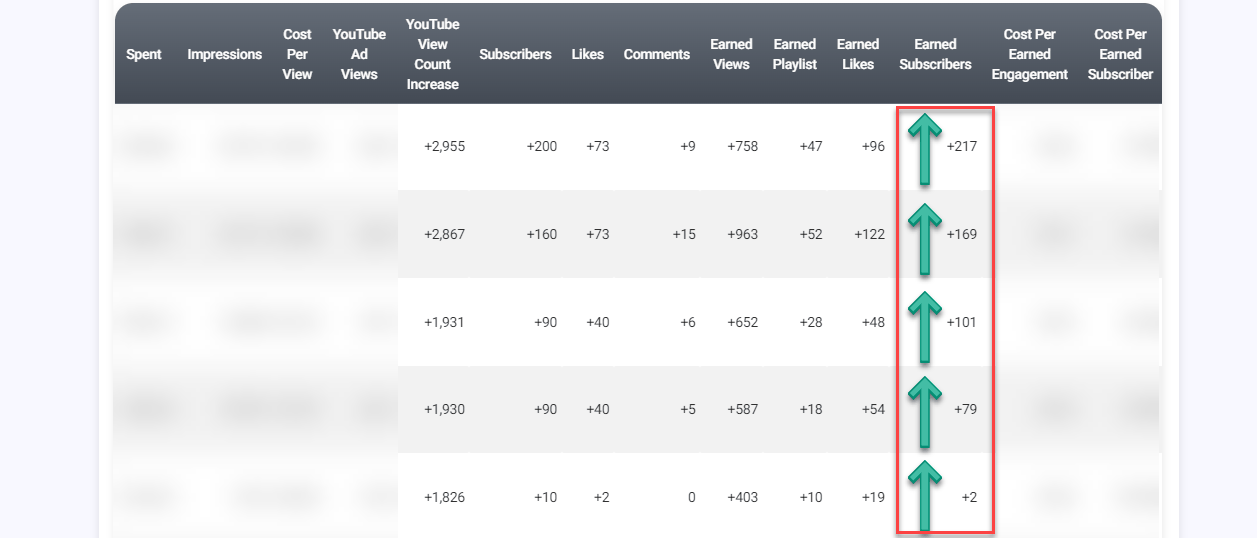
Linking tells Google Ads that the channel and the campaign belong together. That unlocks the campaign reporting that comes from your channel:
- Campaign subscribers and campaign likes
- Playlist adds and earned views
- Cost per subscriber and cost per engagement
- Goals that pause ad groups when they cost more than you want to pay
Without a link, your report still shows spend, impressions, ad views, view rate and cost per view, but the subscriber and engagement columns stay empty.
Linking is optional. Your campaign runs either way.
Is it safe?
Yes. Linking gives Google Ads a small set of analytics from your channel, such as subscribers, likes, comments and shares generated by the promotion. Nobody gets access to your channel, your account or your videos, and nothing can be posted or changed.
How to link
- Open My Channels in your account menu.
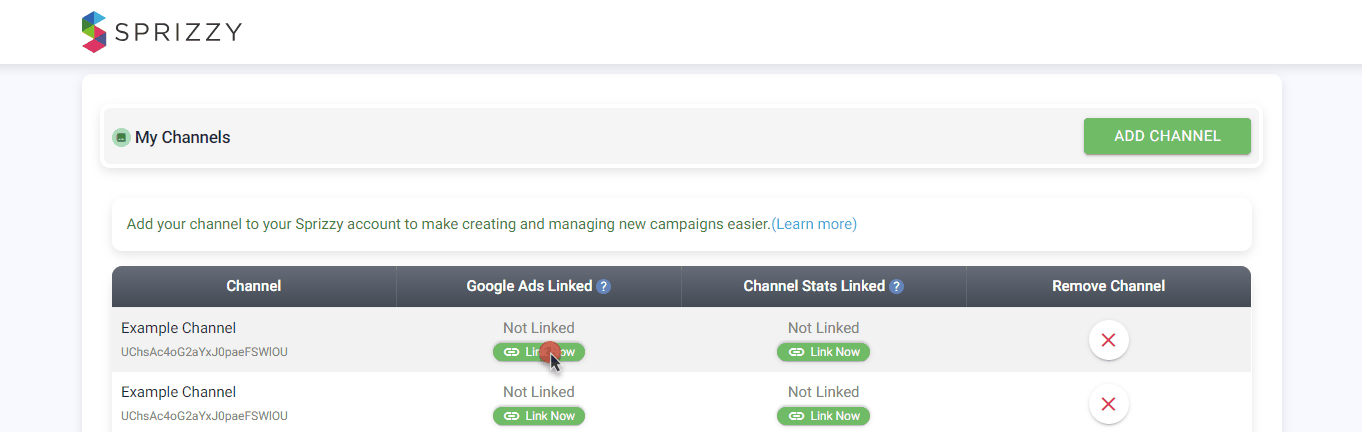
- Find your channel and click Link Now in the Google Ads Linked column.
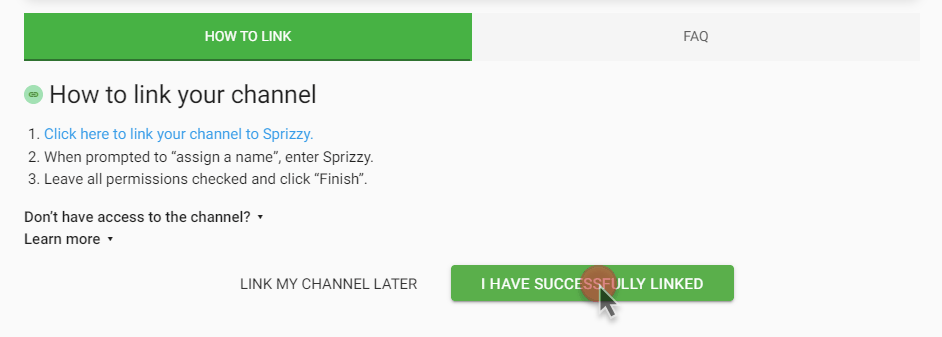
- Follow the link in the window that opens. It takes you to your YouTube Studio.
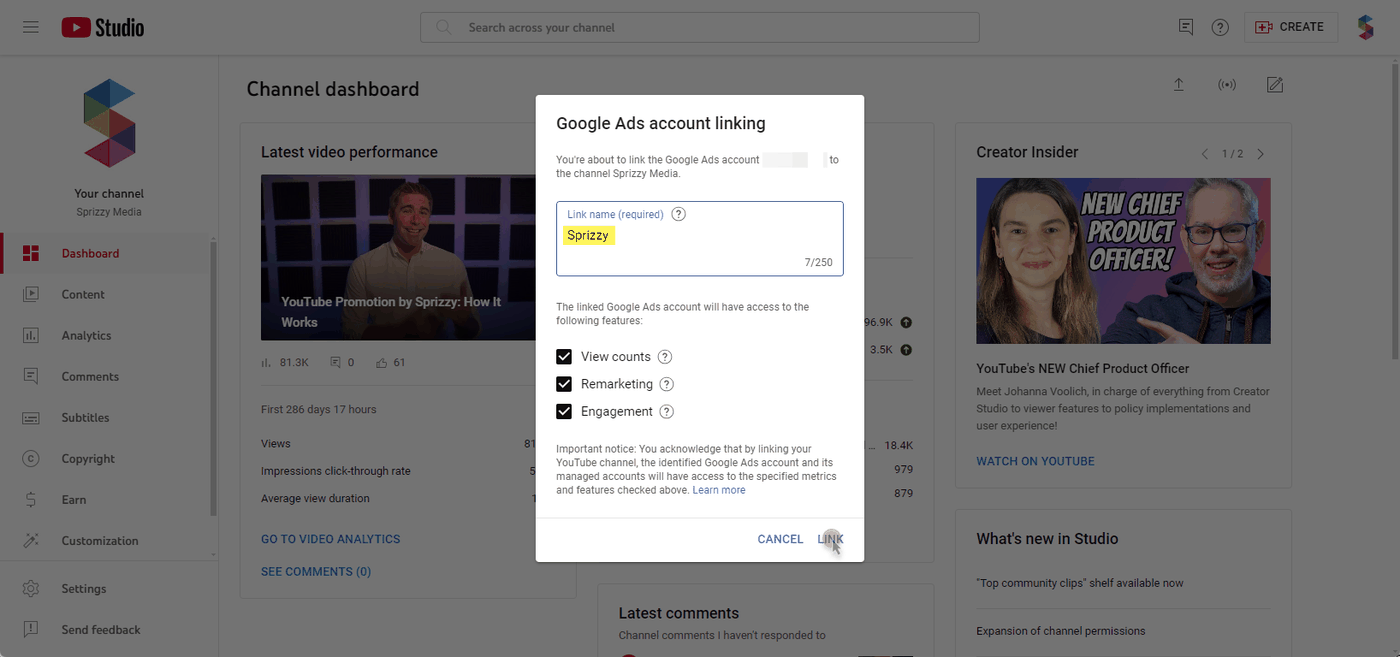
- When asked for a link name, enter Sprizzy.
- Leave every permission checked and click Link.
- Come back to Sprizzy and click I have successfully linked.
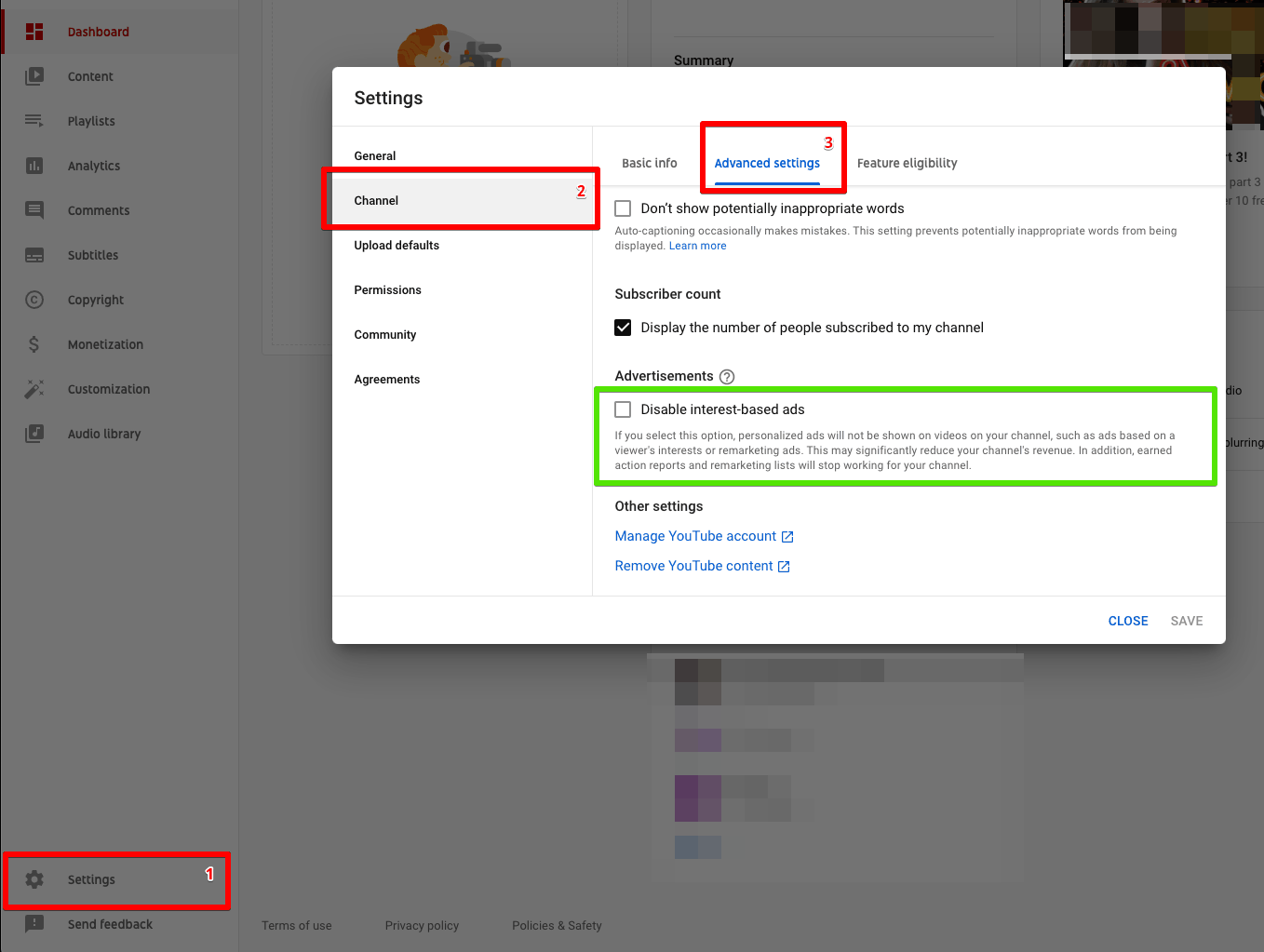
While you are in YouTube Studio, go to Settings, then Channel, then Advanced settings, and make sure Disable interest-based ads is not ticked. With that box ticked, Google cannot report your campaign subscribers and likes.
If linking does not work
“Something went wrong” or “sign in as … to finish the process.” You are signed in to a different Google account from the one that owns the channel. Sign in to the owner account and try again. A private or incognito window helps if you use several Google accounts. The Google account does not have to match your Sprizzy login, it only has to own the channel.
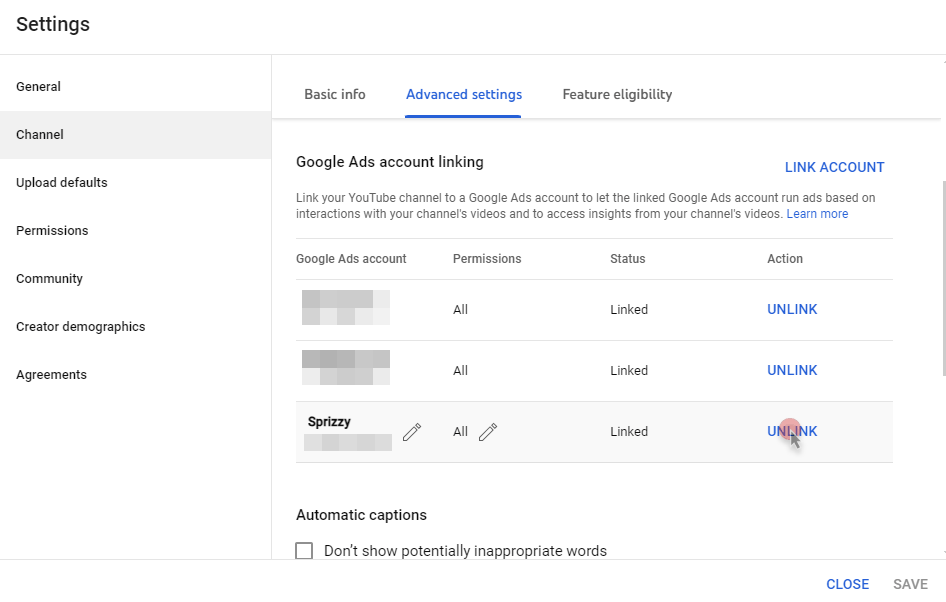
“Link request not found” when YouTube Studio already shows Sprizzy. Remove the old link first. In YouTube Studio go to Settings, then Channel, then Advanced settings, scroll to Google Ads account linking, find Sprizzy, click Unlink, save, then link again from Sprizzy.
It asks for a Google Ads customer ID. You do not need your own Google Ads account. The ID in the request belongs to Sprizzy.
Someone else runs the channel. Click Link Now, then Don’t have access to the channel?, and send the link to the person who owns the channel.
It is an auto-generated topic channel. Channels YouTube generates for music distribution cannot be linked. Upload to a channel you control if you want the extra reporting.
What to do next
If the same error keeps appearing, email support@sprizzy.com with a screenshot of the error and the channel name.