

Download an invoice
- Open the account menu and choose Payment History.
- Find the payment.
- Click the download icon next to it in the Paid column.
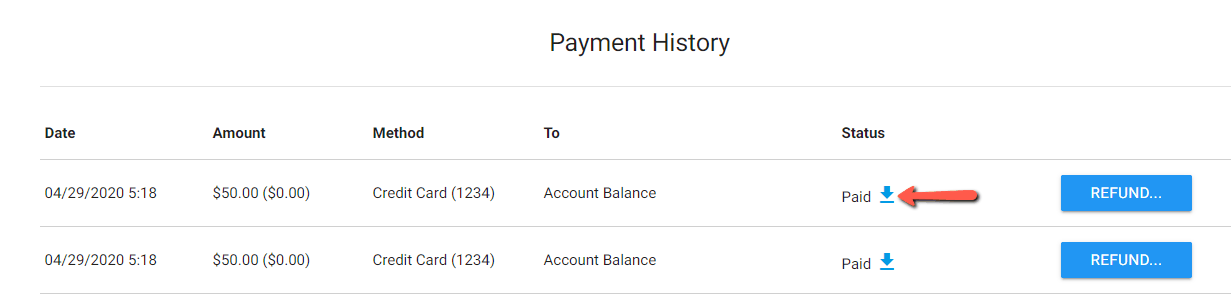
The invoice opens as a file you can save or print. You also get a receipt email each time a payment goes through.
What the invoice shows
The date, the amount, the payment method, and the campaign the payment was applied to.
Company details, tax numbers and VAT numbers cannot be added to the invoice.
A campaign that was refunded
A payment that was refunded or cancelled shows as a refund record in Payment History rather than a downloadable invoice. If you need a document for a refunded payment, email support@sprizzy.com with the payment date and amount.
Tax forms
Sprizzy is a self-serve advertising platform, so W-9 and 1099 forms do not apply to your campaigns. If your accountant needs something specific, email support@sprizzy.com and we will see what we can provide.
Who we send billing documents to
Invoices and account details are only sent to the email address on the account, for security. If somebody else handles your accounting, download the invoice and pass it on.
What to do next
Open Payment History and use the download icon next to the payment you need.